JACKSON, Wyo. — Would you hand over your smartphone to authorities if it could save a life? Would you be willing to make a few easy adjustments to your privacy settings that would enable location tracking if the data could help figure out when, where, and if you came across the path of someone who tested positive for COVID-19?
To a degree, some of this data has already been gathered and the technology used by Google, Facebook, Twitter, Uber and a host of other companies. The federal government is reportedly in talks with several companies to gain access to this data, including facial recognition, in order to better anticipate and track disease spread.
China and South Korea developed their own smartphone surveillance systems to clamp down on outbreaks. Researchers at University of Oxford are working on a voluntary version for the UK, as is M.I.T. in the United States.
There is little doubt such information would be useful, and could potentially save lives. But to what extent is the American public willing to surrender individual rights for the good of the masses? The dilemma pits a sense of civic duty against a presumed right to privacy.
Here’s how it might work
According to tech expert Brian Modena, who runs a digital marketing agency in Jackson Hole, “if you get sick and test positive for COVID-19 you will need to know where you have been and who you have interacted with over the last 14 days.”
If you think you can do this from memory, think again.
How many times have you seen a suspicious charge on your online debit card statement and thought it was fraudulent, only to find later it was something you had completely forgotten about?
“Go ahead and give it a try right now; list off every place you have been in the last 14 days, what time you were there and the full contact information of every person you interacted with,” Modena says.
Computers don’t lie and they don’t forget. And most of us are walking around with powerful mobile versions of these useful devices.
“Our cell phones are fully capable of tracking and logging our location data. While this will not log who you interacted with, it will paint a very accurate timeline of your movements,” Modena says.
If you become infected, the information could be valuable to others who may have touched that gas pump about 15 minutes after you did. Or, wouldn’t you like to know if a local resident with coronavirus, using an anonymous and voluntary data dump, shared where he or she had been for the past two weeks?
“While this is not a perfect solution, I guarantee you that there is already more data and accurate data in your phone than what you will be able to just recall,” Modena assures. “Will this step be an integral part of getting back to our normal everyday lives? Maybe it will be something the U.S. adopts as a preventative measure for future pandemics as a lesson learned from COVID-19.”
Want to participate? Here’s how.
On your iPhone or iPad:
1 — Open the Settings app and tap on “Privacy.”

2 — Scroll down and select “Location Services.”
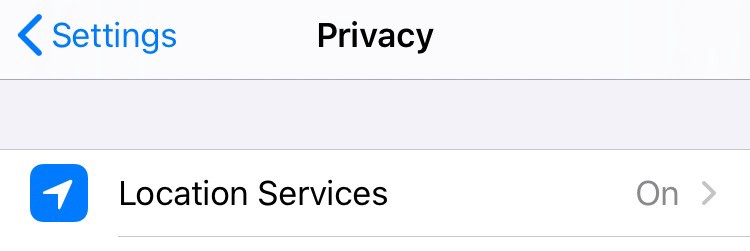
3 — Scroll down in this screen and tap on “System Services.”
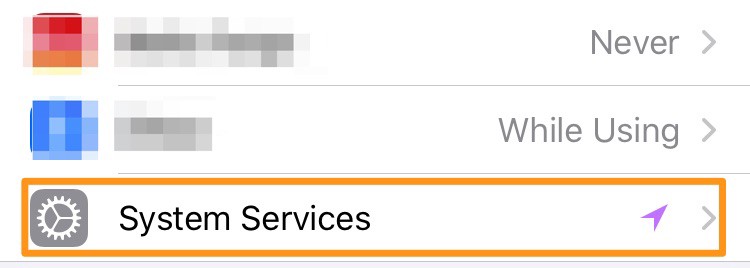
4 — On the next screen, tap on “Significant Locations.”
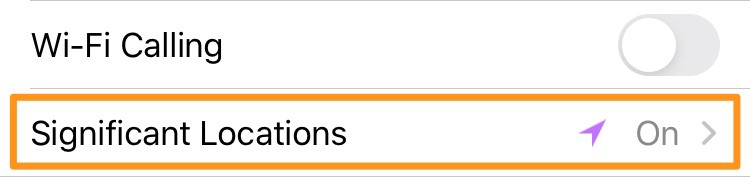
5 — From here you will want to make sure the toggle for significant locations is on and you can also click on the “History” section to pull up detailed information on any location. Specifically where you were and at what time.

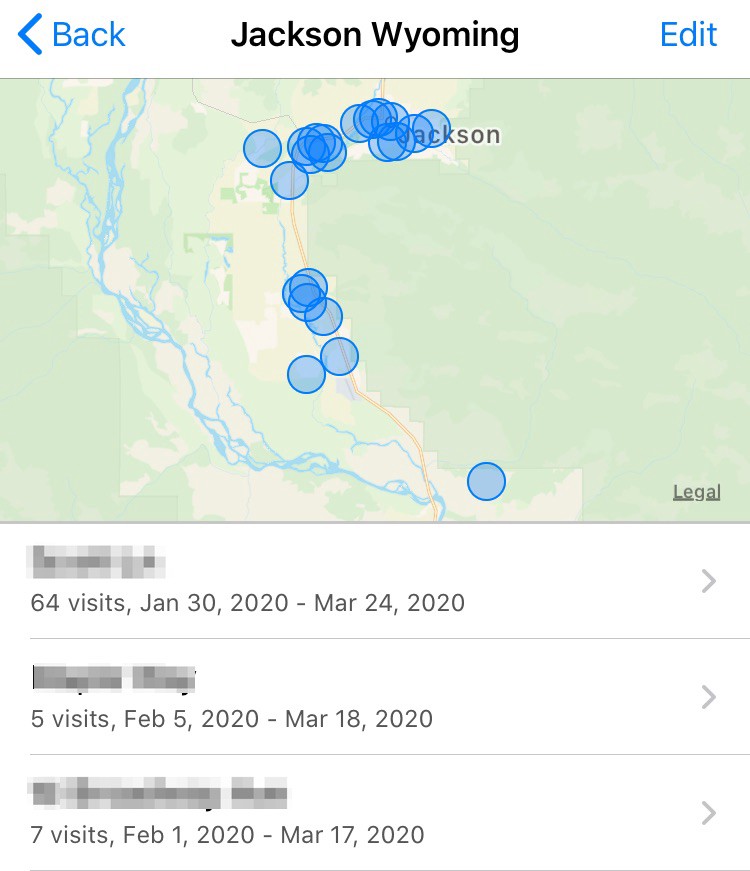
Time & date spent at specific locations

Additional Tutorials to enable Location Services:
Android & iPhone Via Google Maps App
Google Maps has a detailed timeline view that lets you browse through the roads you traveled and the places you visited at what time on a given day.
Install the Apple iOS app or Android app and then login or create a Google account.
In the app you can choose to allow Google to track your location only when you’re using the app or to always track your location in the background. For this application, you want to change this setting to “always.”
You can change this setting on your iPhone or iPad by going to Settings > Privacy > Location Services > Google Maps and selecting “Always.”

The Google Maps Timeline page can be accessed on the web on your iPhone, iPad, or computer. For the best viewing use a laptop or a desktop computer.
You will also need to be logged into the same Google account that is used on with the Google Map app on your phone.
You can then use the timeline to pick specific dates and click into the red dots to pull up specific location information.

Madrid recently launched an app to do just this.
https://carto.com/blog/carto-develops-app-against-coronavirus/
Here is what the personal location data looks like on an time series overlay: